7 min read

 In this article
A little preparation
Explore a new game yourself before your child sees it. Set aside ten minutes with the device at a table, a pen and a notepad. Look first at the app store description and the age rating, then open the game and play as a child would: tap everything, make mistakes and try to leave. Check whether another person could reach adverts, external links or purchase prompts, and read the current access conditions rather than assuming that a free download means free content.
Decide in advance how long a session will last and what comes after it, so the end does not arrive as a surprise. Sit alongside your child for the first few plays and watch what they actually do, not just what the game claims. Plan one simple offline activity to try after any screen time, such as a paper matching game. If something feels wrong, you can always delete the app and choose another.

What to know and try
Play one full session as an adult
A game's promise and its actual task can differ. Playing one full round yourself shows what a child really does: tap, drag, match or just watch. It also shows how mistakes are handled and how a session ends, which matters more than any promotional claim.
 You’ll need
- The game on your device
- A notepad and pen
- A timer set to ten minutes
How to do it
- Open the game and start as a new player, noting what the first screen asks.
- Complete the first activity and notice the task: is it clear and manageable?
- Make a deliberate mistake and watch how the game responds.
- Play until a natural ending and see what appears afterwards.
- Note any sound, speed or flashing that might be too much for your child.
- Write down one thing the game asks the child to do and one question to ask them about it.
Make it your own: For a two-year-old, look for one simple tap or drag. For older children, check whether the difficulty changes and whether the child can understand why they were right or wrong.
Check the edges of the experience
The parts of an app outside the main activity are often where trouble hides: adverts, links, autoplay and purchase buttons. Checking them before your child plays lets you decide whether to use controls, supervise closely or choose another game.
You’ll need
- The game's settings screen
- Your device's parental controls
- A list of what to check
How to do it
- Open the settings and look for a way to turn off purchases or require a password.
- Tap any menu, banner or link to see where it leads.
- Check whether another video, game or advert starts automatically.
- Switch to aeroplane mode and see what still works offline.
- Read the privacy information that describes what data is collected.
- Decide whether the game's boundaries fit your family; if not, choose another.
Make it your own: With younger children, stay beside them and use guided access so they cannot leave the game. With older children, talk through why you have turned certain features off.
Pair the digital idea with real objects
If a game practises matching shapes, counting or colours, you can echo it on the table afterwards. This connects the screen to real things and gives you a way to see what your child understood without turning the game into a test.
You’ll need
- Household shapes such as a plate, a book and a cup
- Counters or buttons
- Paper and a crayon
How to do it
- After the game, ask your child to tell you one thing they did.
- Find a real object that connects to it, such as a round plate for a circle.
- Ask your child to show a similar idea with objects on the table.
- Arrange them in a row or sort them into groups.
- Draw the arrangement on paper if your child wants to.
- Let your child decide whether to play the game again or switch.
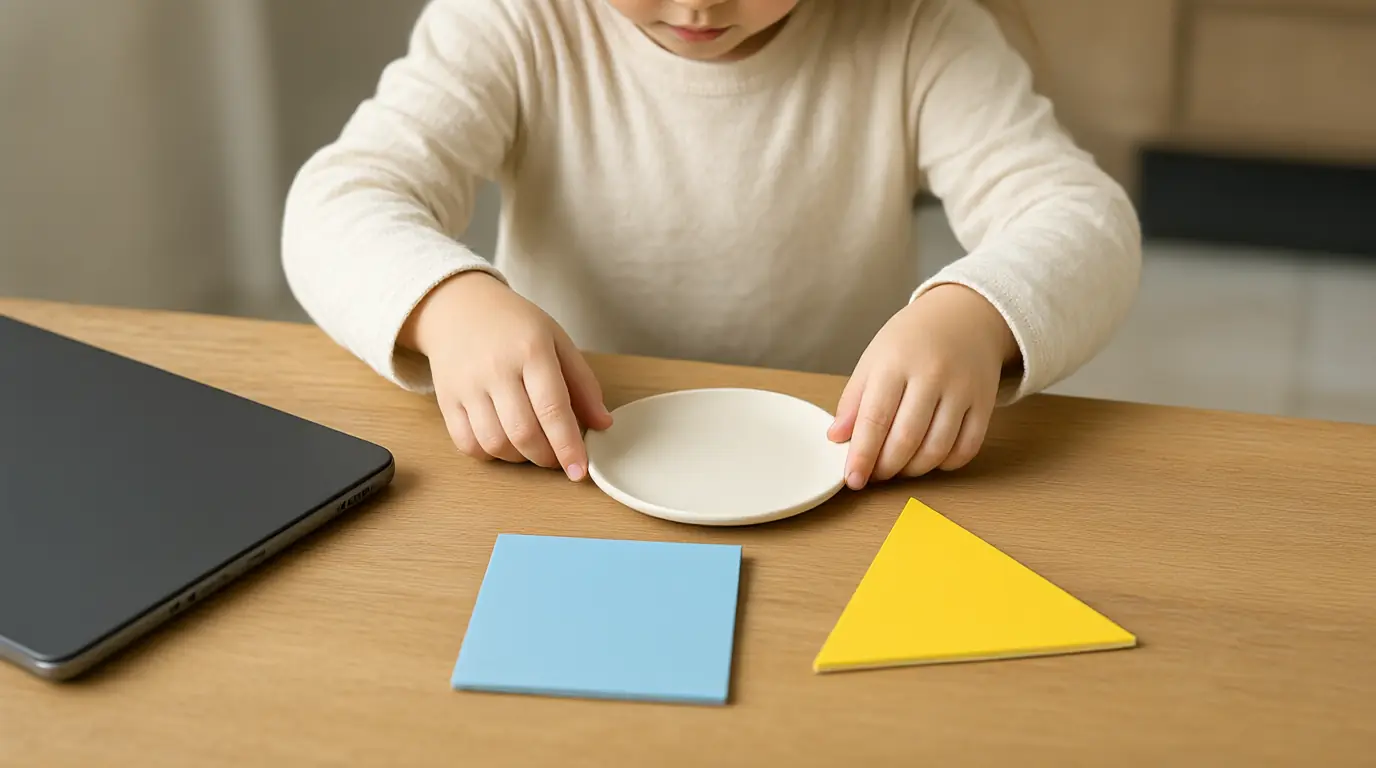
Make it your own: Younger children can match two objects. Older children can invent a rule for sorting and explain it to you.
Keep a free offline choice ready
Switching away from a screen is easier when there is something appealing to switch to. A free, ready-made offline choice gives your child two good options rather than a single no, and keeps the end of a game from feeling like a loss.
You’ll need
- A paper matching game made from card
- A picture book to search for hidden objects
- Toy shop items for a pretend shop
- A small box to keep them in
How to do it
- Make a box of three offline invitations and keep it where your child can see it.
- Before the game starts, say what the next choice will be.
- When the timer rings, hold up two choices from the box.
- Let your child choose one and begin together for a couple of minutes.
- Praise the switch, not the game: 'You chose the shop. What do you sell?'
- Rotate the items in the box so they stay interesting.
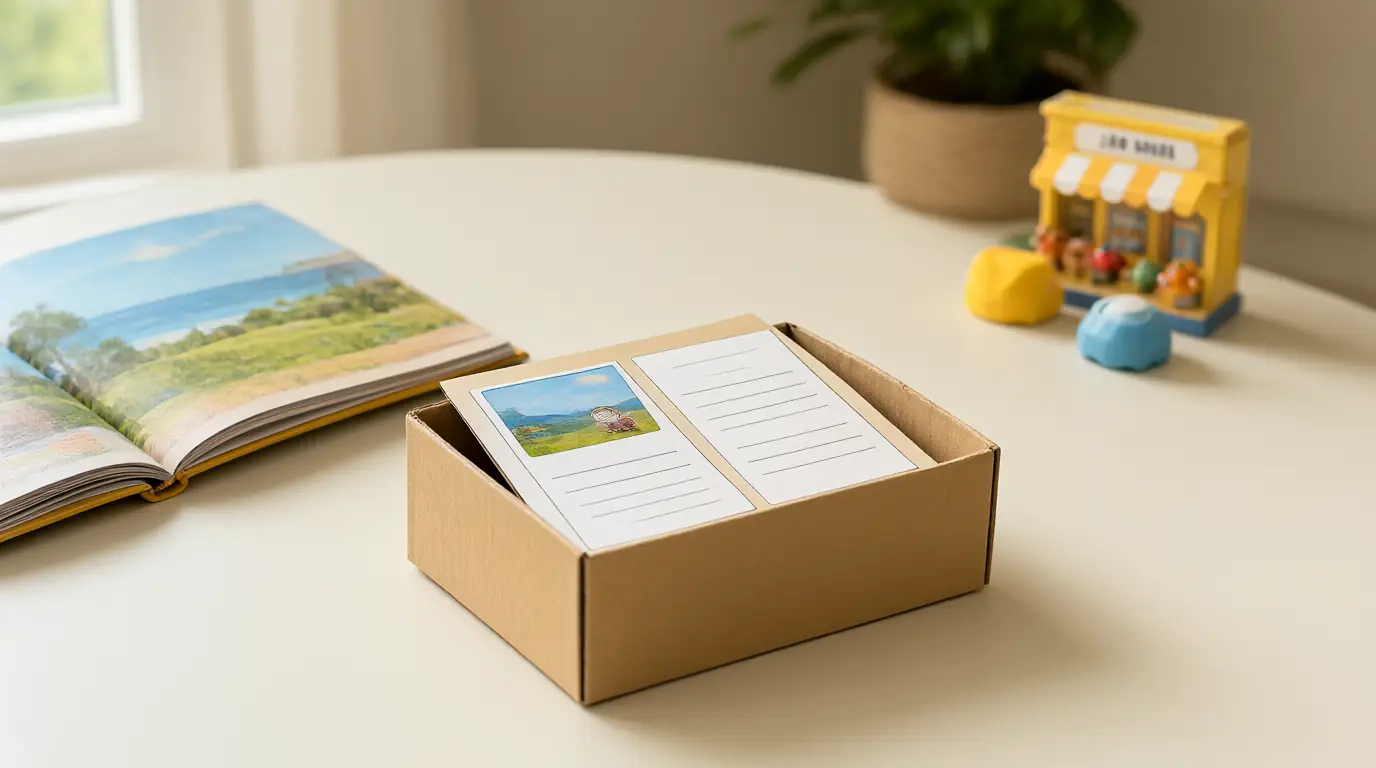
Make it your own: Younger children may need you to start the new activity with them. Older children can make their own box and add their own ideas.
Make a stop plan together
Ending screen time is often the hardest part. A plan agreed beforehand, with a visual signal and a next step, helps children know what to expect and makes it a routine rather than a fight each time.
You’ll need
- A kitchen timer or visual timer
- A card with a picture of the next activity
- Your agreement about how long play lasts
How to do it
- Choose the length of play before it starts, perhaps two rounds or ten minutes.
- Show the timer and place the next-activity card beside it.
- Give a warning at two minutes with a calm phrase.
- When the timer ends, say 'Time to pause' and help save or close the game.
- Move straight to the card activity, with you joining in.
- Review later: 'What went well about stopping today?'
Make it your own: Younger children benefit from a song or counting down. Older children can set the timer themselves and decide what the next activity will be.

Make it work for your family
Describe app access accurately: free to download, a free trial and completely free content are different offers. Weebou may include subscription content, so check the app's current terms rather than assuming every activity is free because the download has no charge, and do the same for any other app.
No game replaces time with you, and no checklist covers every risk. Watch your child, and if a game leaves them upset or constantly asking for more, trust that and change course. For help with planning transitions, see our guide to making screen-time transitions clearer, or look at choosing video games for young children. You can also explore Weebou's alphabet game as an example of a game to review with these checks.

Parents also ask
Are free educational games for kids safe?
Some are, but free does not guarantee safety. Check for adverts, links to other apps, purchase prompts and what data is collected, and play it yourself first. Use your device's parental controls and sit with young children while they play.
How can I tell if a kids' game is actually educational?
Look at what your child does in it: a clear, manageable task, helpful feedback after mistakes and a calm ending are good signs. Be wary of broad promises. Watching your child play and asking them about it tells you more than any label.
How much screen time is right for young children?
It depends on your child, your family and local health guidance. Many families choose short, planned sessions with an adult nearby and a clear end. If you are unsure, ask your doctor or health visitor for advice.
Sources & further reading
Explore these primary sources for further context on this topic.
Choose materials and activities that suit your child, supervise as needed and adapt the ideas to their interests and abilities. About our editorial approach